Multi-Factor Authentication (MFA)
Multi-factor authentication (MFA)/2-step verification is a process that requires two methods of verification to authenticate your identity, adding a layer of protection, because it makes it extremely difficult to compromise the security of a J.P. Morgan Digital Banking Cashflow360 account.
When you create a J.P. Morgan Digital Banking Cashflow360 account, we require an MFA/2-step verification method to use for MFA/2-step verification. This article will help you choose an option, setup, and manage this verification.
Jump to:
- Set up MFA/2-step verification with a phone number
- Set up MFA/2-step verification using an authenticator app
- MFA/2-step verification when traveling outside the US
- When you'll be prompted for a code
- Recovery codes
- Change your MFA/2-step verification phone numbers
- Remove an authenticator app or phone number
- Troubleshooting MFA/2-step verification
- Things to know
Set up MFA/2-step verification with a phone number
With J.P. Morgan Digital Banking Cashflow360, you can use your phone number for texts or calls, or an authenticator app to receive MFA/2-step verification codes. Use the steps below to setup a phone number.
Set up during sign up:
- When prompted to set up MFA/2-step verification during sign up, select the Text me or Call me, then select Next
- Your phone number is pre-populated with the number you entered during signup. If you need to change it, follow the steps in that section.
- Enter the security code you receive
- Select Trust this device for 180 days to reduce the need to enter a security code
- Select Verify
Set up in Settings:
- Select Settings
- Select Security under User Settings
- Select Enroll phone number
- Enter your phone number, select Call me or Text message, and select Next
- Enter the code and select Verify
Set up MFA/2-step verification using an authenticator app
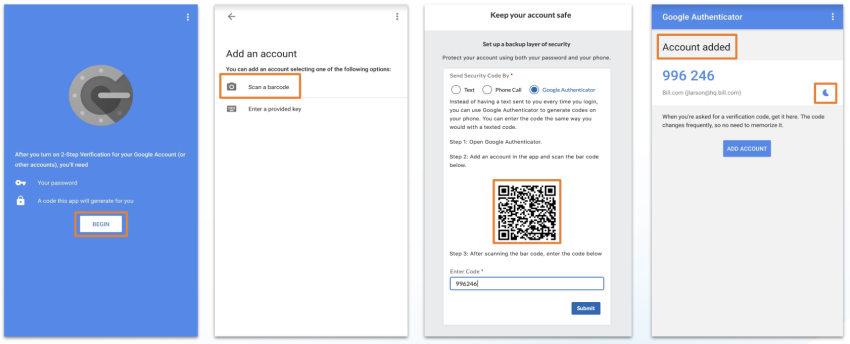
With J.P. Morgan Digital Banking Cashflow360, you can use your phone number for texts or calls, or an authenticator app to receive MFA/2-step verification codes. Use the steps below to setup an authenticator app such as Google Authenticator, Authy, Okta, etc.
This is also the recommended option for MFA/2-step verification when you're traveling outside the US.
- Download the authenticator app from your device's mobile store
- When prompted to set up MFA/2-step verification during sign up, select Use an Authenticator app
- Alternatively, at any time when logged into J.P. Morgan Digital Banking Cashflow360, select Settings, select Security under User Settings, then select Enroll authenticator.
- Select your authenticator App
- Follow the steps in the authenticator app, and scan the barcode in J.P. Morgan Digital Banking Cashflow360
- Authenticator app will then generate the first code - enter that code in J.P. Morgan Digital Banking Cashflow360
- Select Submit
You'll now have the option to use either your phone number or the authenticator app when prompted for MFA/2-step verification codes.
(Google Authenticator as example below)
MFA/2-step verification when traveling outside the US
The recommended option for MFA when you're traveling outside the US is authenticator app. It is highly suggested to set the authenticator app up before leaving the US, using the steps below.
- When next prompted for an MFA/2-step verification, select Use an Authenticator app
- Alternatively, at any time when logged into J.P. Morgan Digital Banking Cashflow360, select Settings, select Security under User Settings, then select Enroll authenticator.
- Select your authenticator App
- Follow the steps in the authenticator app, and scan the barcode in J.P. Morgan Digital Banking Cashflow360
- Authenticator app will then generate the first code - enter that code in J.P. Morgan Digital Banking Cashflow360
- Select Submit
You'll now have the option to use either your phone number or the authenticator app when prompted for MFA/2-step verification codes.
When you'll be prompted for a code
J.P. Morgan Digital Banking Cashflow360 will prompt you with a text or a voice message, requesting you to enter a code upon logging in to the system.
Checking the Trust this device for 180 days box when you enter a code will reduce the need of a code to every 180 days.
Note: Even on devices that you've marked as trusted, these actions also prompt MFA/2-step verification codes:
- Changing your password
- Changing your phone number
- Adding or removing a MFA/2-step verification method
- Adding a bank
Recovery codes
If you use an authenticator app for MFA/2-step verification, you'll also receive recovery codes. You can use recovery codes as an additional 2-step verification method if you lose access to your existing phone number and/or authentication app. Each code can be used one time.
It is highly recommended to print, write down, or copy your recovery codes in case you lose access to the authenticator app.
Change your MFA/2-step verification phone number
You can change your phone number for MFA/2-step verification in your J.P. Morgan Digital Banking Cashflow360 account when prompted for a code, or in your Settings.
Note: Each user must follow the steps below to change their own phone number. You cannot change the phone number for another user.
Change phone number when prompted for a code:
- Select Try another method
- Select Call or text me at a different phone number, and then Next
- Enter in the new phone number.
- This will replace your primary phone number for MFA/2-step verification.
- Select Text message or Voice call, then select Send code.
- Enter the security code you receive
- Select Trust this device for 180 days to reduce the need to enter a security code
- Select Verify
Change phone number in Settings:
You'll need access to the current phone number in order to receive a code to authorize the change.
- Select Settings
- Select Security under User Settings
- Select Change phone number
- Enter in the new phone number.
- This will replace your primary phone number for MFA/2-step verification.
- Select Text message or Voice call, then select Send code.
- Enter the security code you receive
- Select Trust this device for 180 days to reduce the need to enter a security code
- Select Verify
Remove an authenticator app or phone number
If you no longer want to use an existing authenticator app or phone number for MFA/2-step verification with J.P. Morgan Digital Banking Cashflow360, you can remove them.
- Select Settings
- Select Security under User Settings
- Select Remove phone number or Remove authenticator
Note: If you remove all MFA/2-step verification methods, the next time you're prompted for a code you'll be required to set up a new method. At least one MFA/2-step verification is required to use J.P. Morgan Digital Banking Cashflow360 (phone or authenticator app).
Troubleshooting MFA/2-step verification
If you aren't receiving your MFA/2-step verification codes
- Always use a direct line. Codes cannot be routed through an extension
- You may need to restart your device
- If your phone is unable to receive codes, try using an authenticator app
- If you received the error message "We can no longer send a code - You‘ve reached the maximum attempts for sending a code to one of your devices," the code has been sent five (5) times, which is the maximum per session. Please log out of your account and wait 30 minutes, then log in again to request a new code.
- If you no longer have access to your phone number and are unable to change it in J.P. Morgan Digital Banking Cashflow360, submit a request to reset your access using the 2-step Verification Access Request form.
- Customer Support can check to see if the codes are being sent.
If you are being prompted for MFA/2-step verification codes often, after selecting the Trust this device setting:
- Save our domain as a trusted website on any site blockers or ad blockers
- Examples of some site/ad blockers:
- AdBlock Plus
- Freedom
- StayFocused
- Limit
- Poper blocker
- PrivacyBadger
- Examples of some site/ad blockers:
- Remove all trusted devices listed under your user profile
- Select Settings
- Select Security under You
- Select Remove next to each device listed under Trusted Devices
- Sign out of J.P. Morgan Digital Banking Cashflow360
- When you sign in again, we'll prompt an MFA/2-step verification code. Enter the code you receive and select Trust this device for 180 days.
Things to know
- Please note that we can only send phone call based security codes to US and Canadian numbers. All International numbers will only be able to receive text based codes.
- It is recommended to use the authenticator app when traveling outside the US
- It's best practice to not share phone numbers or use another person's phone number for MFA/2-step verification
- Select Trust this device for 180 days to reduce the number of MFA/2-step verification code prompts
- Don't select the Trust this device for 180 days box when working on someone else's computer or logging in from a public location (like a library computer)
ACCOUNT SETUP View all
QuickBooks Desktop View all
Import / Export View all